
WordPress HubSpot Integration Guide
Business Analysis Insights


How to connect WordPress with HubSpot CRM, choose the right integration method, structure your data, automate workflows, and build a scalable integration
WordPress and HubSpot can work together to connect website activity, lead capture, CRM data, marketing automation, and sales workflows.
But connecting the two platforms is not simply a matter of installing a plugin.
The right approach depends on your website architecture, data requirements, automation needs, performance constraints, and expected scale.
This guide explains the main ways to integrate WordPress with HubSpot, when to use plugins or APIs, how to structure data, how to connect forms and WooCommerce, how to build reliable automation, and what to consider when the integration needs to support a growing or enterprise website.
What Is WordPress HubSpot Integration?
WordPress HubSpot integration connects a WordPress website with HubSpot so that website activity and customer data can move between the two platforms without relying on manual data entry.
Depending on the implementation, WordPress can send information such as:
- Contact form submissions
- Newsletter subscriptions
- Demo and consultation requests
- Content downloads
- Event registrations
- Product inquiries
- WooCommerce purchases
- Customer profile updates
- Behavioral events
- Custom form fields
- Lead qualification data
HubSpot can then use this information for CRM management, segmentation, marketing automation, lead scoring, sales notifications, reporting, and customer communication.
The exact data flow depends on how the integration is implemented.
A simple website may only need form synchronization. A more complex organization may need custom APIs, webhooks, multiple data sources, CRM property mapping, workflow automation, and custom business logic.
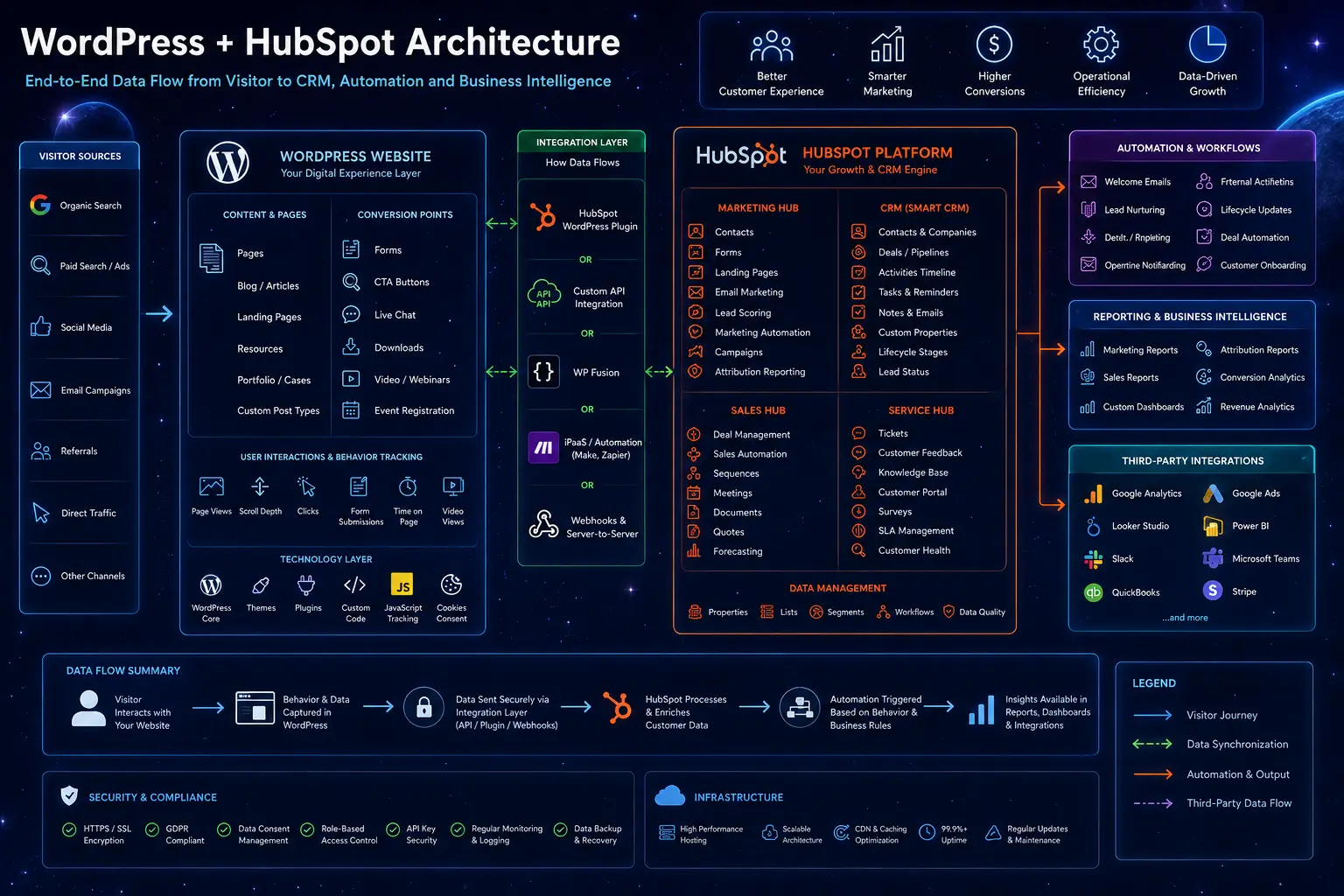
How WordPress and HubSpot Work Together
The two platforms normally have different roles.
WordPress manages the website experience, content, forms, ecommerce functionality, and other visitor-facing interactions.
HubSpot manages customer records, CRM data, marketing automation, sales processes, lists, workflows, and reporting.
An integration connects these layers.
A simplified flow looks like this:
Visitor → WordPress → Integration Layer → HubSpot CRM → Automation → Sales / Marketing
For a simple implementation, the integration layer may be provided by a plugin.
For more complex requirements, it may include custom PHP, HubSpot APIs, webhooks, external systems, validation logic, and custom data transformations.
The important question is not whether WordPress can connect to HubSpot.
It can.
The important question is what information needs to move between the systems and what should happen after it does.
What Data Can Be Shared Between WordPress and HubSpot?
A well-planned integration can synchronize much more than basic contact information.
| WordPress activity | Possible HubSpot action |
|---|---|
| Contact form submission | Create or update a contact |
| Demo request | Notify sales and create a qualification workflow |
| Newsletter signup | Add contact to a marketing list |
| Content download | Start a nurturing workflow |
| Pricing page interaction | Update lead-scoring data |
| Event registration | Enroll contact in an event workflow |
| WooCommerce purchase | Update customer and purchase data |
| Custom application form | Trigger an internal workflow |
| Account registration | Create or update customer properties |
| Selected behavioral event | Update contact activity or qualification data |
Not every website needs every type of synchronization.
The integration should be designed around the business processes that actually depend on the data.
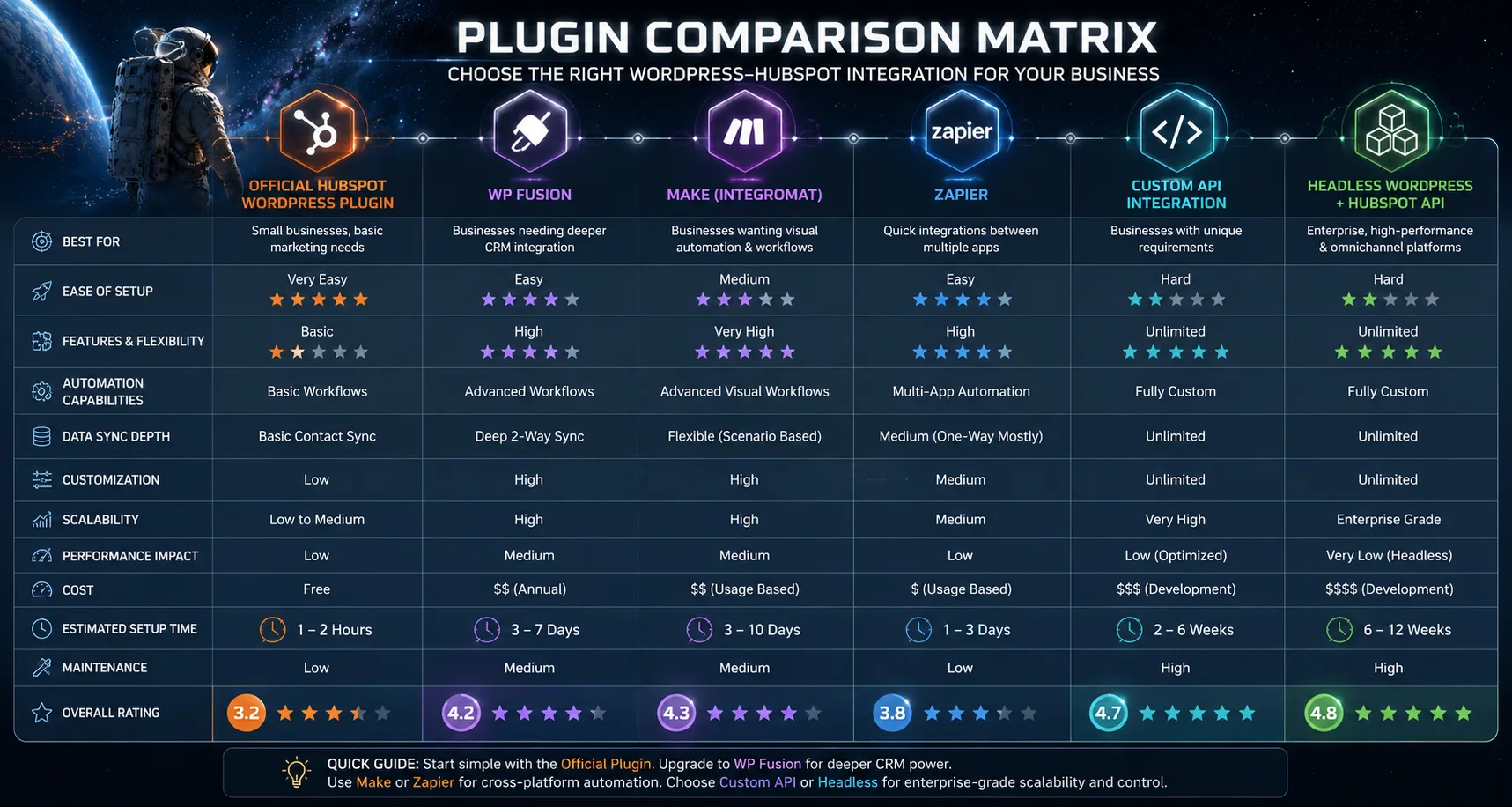
Choosing the Right WordPress-HubSpot Integration Method
There is no single integration method that works best for every WordPress website.
The main options include:
- HubSpot’s WordPress plugin
- WordPress-specific integration plugins
- Automation platforms such as Zapier or Make
- HubSpot APIs
- Custom WordPress-HubSpot development
- A combination of several approaches
The right choice depends on complexity, scalability, control, performance, and maintenance requirements.
1. HubSpot WordPress Plugin
The official HubSpot plugin can be a practical starting point for websites that need standard HubSpot functionality.
Typical use cases include:
- Forms
- Live chat
- Basic tracking
- Contact capture
- Marketing tools
- Simple CRM interactions
It can reduce implementation time and technical overhead for relatively straightforward websites.
However, plugin-based functionality may become limiting when the integration requires custom data structures, complex workflows, advanced validation, external APIs, or business-specific logic.
A plugin can be the right starting point without necessarily being the right architecture for the entire project.
2. WordPress Integration Plugins
Third-party WordPress plugins can provide deeper connections between WordPress functionality and HubSpot.
They may support features such as:
- Custom field synchronization
- User data synchronization
- Membership integrations
- Ecommerce connections
- Conditional automation
- CRM property mapping
The advantage is faster implementation without building every component from scratch.
The trade-off is dependency on a third-party plugin, its update cycle, supported features, and compatibility with the rest of the WordPress stack.
Before choosing one, evaluate:
- Maintenance history
- Compatibility with your WordPress version
- Supported HubSpot functionality
- Performance impact
- Security
- Data synchronization behavior
- Duplicate prevention
- Error handling
3. Zapier, Make, and Similar Automation Platforms
Automation platforms can connect WordPress and HubSpot with relatively little custom development.
They are useful when the workflow is straightforward and involves several SaaS applications.
For example:
WordPress form → automation platform → HubSpot contact → notification
This approach can work well for smaller workflows.
However, it becomes less attractive when the integration requires:
- High data volume
- Complex transformations
- Custom authentication
- Advanced error handling
- Large numbers of workflows
- Strict control over data processing
- Low-latency processing
- Complex business rules
At that point, a custom API-based architecture may provide more control.
4. HubSpot APIs
HubSpot APIs allow developers to build a more controlled connection between WordPress and HubSpot.
APIs are useful when the integration needs to:
- Create or update CRM records
- Work with custom properties
- Synchronize structured data
- Trigger or support custom workflows
- Connect multiple systems
- Apply custom business logic
- Handle data transformations
- Build application-specific functionality
An API-based integration also gives the development team greater control over how data is validated, transformed, stored, and transmitted.
5. Custom WordPress-HubSpot Integration
Custom development becomes relevant when the integration is part of a larger business process rather than a simple data connection.
Typical requirements include:
- Custom CRM data models
- Multiple WordPress websites
- Complex lead qualification
- External data enrichment
- Custom APIs
- Webhooks
- Advanced routing logic
- Ecommerce synchronization
- ERP or internal system integration
- AI-assisted processing
- Custom validation and error handling
In these cases, the integration should be treated as part of the website architecture rather than as another WordPress plugin.
For organizations with these requirements, DreamDev provides custom HubSpot integration services built around specific data flows and business processes.
Plugin vs API vs Custom Integration
A simple comparison can help narrow the options.
| Requirement | Plugin | Automation Platform | API / Custom Development |
|---|---|---|---|
| Basic form capture | ✓ | ✓ | ✓ |
| Basic contact synchronization | ✓ | ✓ | ✓ |
| Custom CRM properties | Limited | ✓ | ✓ |
| Complex data transformation | Limited | ✓ | ✓ |
| Advanced business logic | Limited | Limited | ✓ |
| Multiple external systems | Limited | ✓ | ✓ |
| High-volume workflows | Depends | Depends | ✓ |
| Custom error handling | Limited | Limited | ✓ |
| Complex lead qualification | Limited | Limited | ✓ |
| Full architectural control | Limited | Limited | ✓ |
The goal is not to choose the most technically complex solution.
It is to choose the simplest architecture that can reliably support the required business process.
Planning a WordPress-HubSpot Integration
Before implementing the connection, define what the integration is supposed to accomplish.
A useful planning process starts with five questions:
1. What business process are you improving?
Examples include:
- Lead capture
- Lead qualification
- Marketing automation
- Sales handoff
- Customer onboarding
- Ecommerce
- Customer support
- Reporting
2. What data needs to move?
Document every field and event that needs to be synchronized.
3. Where should the source of truth live?
For example, WordPress may own website content while HubSpot owns customer and sales data.
4. What should happen after synchronization?
A new form submission may create a contact, trigger scoring, notify sales, start nurturing, or create a deal.
5. What happens when something fails?
Every production integration needs a strategy for invalid data, duplicate records, API failures, timeouts, and synchronization errors.
Step-by-Step WordPress HubSpot Integration
Step 1. Audit Your WordPress Website
Before connecting HubSpot, review the existing website.
Look at:
- Contact forms
- Existing CRM integrations
- Analytics
- Marketing scripts
- WooCommerce
- Membership systems
- User registration
- Third-party APIs
- Performance
- Security plugins
- Cookie consent
- Custom WordPress code
The objective is to understand what already happens when a visitor interacts with the website.
Adding another integration without understanding the existing data flow can create duplicate records, conflicting scripts, or unexpected automation.
Step 2. Prepare Your HubSpot Portal
HubSpot should be structured before WordPress starts sending production data.
Review:
- Contact properties
- Company properties
- Deal pipelines
- Lifecycle stages
- Lead statuses
- Teams
- User permissions
- Lists
- Workflows
- Reporting requirements
Define which properties should be populated by WordPress and which should be controlled by HubSpot workflows.
This prevents the integration from becoming a collection of disconnected field mappings.
Step 3. Define the Data Flow
Document what should happen after every important customer interaction.
For example:
Visitor submits a consultation request
↓
WordPress validates the submission
↓
Contact is created or updated in HubSpot
↓
Source and service interest are assigned
↓
Lead is evaluated
↓
Sales or nurturing workflow is triggered
The exact workflow will differ between businesses, but documenting it before development makes implementation much more predictable.
Step 4. Choose the Integration Method
Based on the requirements, choose between:
- Official HubSpot plugin
- Third-party plugin
- Automation platform
- HubSpot API
- Custom integration
Avoid building a custom solution simply because it is technically possible.
At the same time, avoid forcing a plugin-based solution into a process that requires custom business logic.
Step 5. Configure Authentication
Secure authentication before connecting production data.
Depending on the architecture, this may involve:
- API credentials
- Private app authentication
- Webhook configuration
- Server-side authentication
- Access permissions
Credentials should never be exposed in frontend code or stored in publicly accessible files.
Use the minimum permissions required for each integration component.
Step 6. Map WordPress Data to HubSpot
Every synchronized field should have a defined purpose.
For example:
| WordPress data | HubSpot property |
|---|---|
| First name | First name |
| Last name | Last name |
| Company | Company name |
| Service interest | Custom property |
| Lead source | Original source / custom property |
| Form type | Custom property |
| Qualification status | Custom property |
| Sales priority | Custom property |
Avoid sending every available field simply because it can be synchronized.
Only collect and synchronize information that supports a real business process.
Step 7. Configure Forms and Lead Capture
Forms are often the main entry point into HubSpot.
Review:
- Required fields
- Validation
- Consent
- Hidden fields
- Campaign attribution
- Source tracking
- Duplicate handling
- Error states
- Confirmation behavior
For more complex lead-generation websites, form submission may be only the first step.
The submission can then trigger enrichment, qualification, scoring, routing, or nurturing.
Step 8. Connect WooCommerce Where Required
WooCommerce introduces additional customer and transaction data.
Depending on the business model, relevant information may include:
- Orders
- Products
- Revenue
- Purchase frequency
- Customer status
- Refunds
- Coupons
- Lifetime value
This data can support segmentation, customer communication, reporting, and post-purchase workflows.
The exact synchronization model should depend on what HubSpot needs to know rather than attempting to copy the entire WooCommerce database into the CRM.
Step 9. Build Automation Workflows
Once data is flowing correctly, configure the workflows that use it.
Examples include:
Lead nurturing
Content download → contact added to list → nurturing workflow
Sales notification
High-intent inquiry → qualification criteria met → sales notification
Customer onboarding
Purchase → customer record updated → onboarding workflow
Lead routing
Qualification result → appropriate sales team → follow-up workflow
Automation should be based on clearly defined business rules.
Step 10. Verify Data Synchronization
Do not assume the integration works because the first test submission appeared in HubSpot.
Test:
- New contacts
- Existing contacts
- Duplicate submissions
- Company associations
- Custom properties
- Lifecycle stages
- Deal creation
- Attribution
- Workflow enrollment
- Failed API requests
- Invalid submissions
Test both successful and unsuccessful scenarios.
Step 11. Test Complete Customer Journeys
Feature-level testing is not enough.
Simulate the complete customer journey.
For example:
Visitor discovers the website
↓
Reads an article
↓
Downloads a resource
↓
Returns to the website
↓
Requests a consultation
↓
Becomes a qualified lead
↓
Sales receives the opportunity
Verify that the data remains consistent throughout the entire journey.
Using AI for WordPress-HubSpot Workflows
AI can add another layer to a WordPress-HubSpot integration, but it should solve a specific business problem rather than be added simply because AI is available.
Useful applications can include:
- Lead qualification
- Lead enrichment
- Lead scoring support
- Classification
- Content personalization
- Customer support
- Information extraction
- Internal knowledge retrieval
For example, an inbound lead can be evaluated using website information, CRM properties, external company data, and predefined qualification criteria before being routed to the appropriate workflow.
The important distinction is between AI as a useful component of an existing workflow and an isolated AI feature that does not connect to business operations.
Real-World Example: AI-Powered Lead Qualification
DreamDev built a custom qualification layer connecting WordPress, HubSpot CRM, external company data, AI-assisted analysis, and automated sales workflows.
The system supported more than 15 qualification and routing scenarios and delivered a 65% reduction in manual qualification work, according to the project results.
The AI component acted as a decision-support layer while business rules and human review remained part of the qualification process.
Read the full AI-powered lead qualification case study
This is a useful example of how a WordPress-HubSpot integration can evolve from basic contact synchronization into a more sophisticated qualification workflow.
Performance Considerations
A CRM integration can affect website performance if third-party scripts and tracking resources are loaded without a clear strategy.
The objective is not to remove useful functionality.
It is to load the resources that the website actually needs without creating unnecessary frontend overhead.
Monitor Core Web Vitals
After implementing HubSpot functionality, monitor:
- Largest Contentful Paint
- Interaction to Next Paint
- Cumulative Layout Shift
- Time to First Byte
Compare performance before and after implementation.
If performance changes, identify which scripts or integration components are responsible before adding further optimization layers.
Load Functionality Where It Is Needed
Not every HubSpot feature needs to load on every page.
For example:
- Meeting scheduling can load on consultation pages.
- Live chat can be limited to relevant service or support pages.
- Interactive forms can be loaded only where visitors need them.
- Campaign-specific functionality can be restricted to relevant landing pages.
This keeps the frontend lighter while preserving the functionality that matters.
Minimize Plugin Dependencies
Every additional WordPress plugin creates another maintenance and compatibility dependency.
Review whether multiple plugins are solving overlapping problems.
A simpler WordPress stack is generally easier to maintain, troubleshoot, secure, and optimize.
Security and Data Protection
CRM integrations move customer information between systems, so security needs to be considered during architecture and implementation rather than added later.
Important areas include:
Protect API Credentials
Keep credentials server-side and never expose sensitive keys in frontend JavaScript or public repositories.
Use Least-Privilege Access
Give each integration component only the permissions it actually needs.
Validate Incoming Data
Do not assume that data received from forms, webhooks, or external systems is valid.
Prevent Duplicate Records
Define how the system identifies an existing contact before creating a new record.
Monitor Failed Requests
Integration failures should be logged and made visible to the technical team.
Review Consent Requirements
If personal data is collected through WordPress and transferred to HubSpot, the implementation should reflect the organization’s applicable privacy and consent requirements.
Troubleshooting WordPress-HubSpot Integration
When an integration does not work as expected, start by identifying where the data flow stops.
| Problem | Possible cause | What to check |
|---|---|---|
| Contact is not created | Authentication or API error | Credentials and API response |
| Duplicate contacts | Missing matching logic | Email/contact identification |
| Custom field is empty | Incorrect property mapping | HubSpot property name and type |
| Workflow does not trigger | Enrollment criteria | Workflow conditions |
| Data arrives late | Asynchronous processing | Queue, webhook, or API flow |
| Form works but CRM does not update | Integration failure | Server logs and API response |
| Website becomes slower | Third-party scripts | Frontend requests and script loading |
| Company is not associated | Missing association logic | CRM object relationships |
The fastest way to troubleshoot an integration is to trace one complete transaction from WordPress to HubSpot instead of checking individual components in isolation.
Enterprise WordPress-HubSpot Integration
Larger organizations often have requirements that go beyond a single website and a single CRM connection.
Examples include:
- Multiple WordPress websites
- Multiple brands
- Regional websites
- Multiple languages
- Complex CRM structures
- ERP integrations
- Internal applications
- Custom APIs
- Large volumes of customer data
- Advanced reporting
- Complex sales processes
At this scale, the integration becomes an architectural component of the digital platform.
The key questions change from:
Can WordPress connect to HubSpot?
to:
How should customer data move through the organization’s systems?
and:
How can the integration remain reliable as the website, CRM, and business processes grow?
For enterprise projects, consider:
- Data ownership
- API architecture
- Authentication
- Error handling
- Monitoring
- Performance
- Scalability
- Governance
- Deployment processes
- Backup and rollback procedures
For broader enterprise WordPress architecture, DreamDev also works with custom WordPress platforms, APIs, integrations, and complex content environments.
WordPress-HubSpot Integration Checklist
Before launching an integration, verify:
Business
- Business objectives are documented
- Customer journeys are mapped
- Sales and marketing requirements are aligned
- Required workflows are documented
CRM
- Contact properties are reviewed
- Company properties are defined
- Lifecycle stages are configured
- Duplicate handling is defined
- Property mapping is documented
WordPress
- Forms are audited
- Existing integrations are reviewed
- Plugins are reviewed
- Tracking scripts are documented
- Performance has been benchmarked
Integration
- Authentication is secure
- Data mapping is complete
- Validation is implemented
- Error handling is implemented
- Failed requests can be monitored
Automation
- Workflow enrollment criteria are tested
- Lead routing is verified
- Notifications are tested
- Nurturing workflows are reviewed
- Customer journeys have been tested end to end
Launch
- Production credentials are configured
- Backup and rollback procedures are documented
- Monitoring is active
- Core Web Vitals are monitored
- Stakeholders have reviewed the final workflows
When Should You Use Custom Development?
A plugin or automation platform can be enough for a straightforward WordPress website.
Custom development becomes more relevant when the integration needs to support business-specific logic or multiple systems.
Consider custom development when you need:
- Complex CRM data mapping
- Multiple WordPress websites
- Custom APIs
- External data enrichment
- Advanced lead qualification
- AI-assisted workflows
- Complex lead routing
- WooCommerce and CRM synchronization
- ERP or internal system integration
- Custom validation
- Detailed error handling
- High control over performance and architecture
The goal is not to replace plugins everywhere.
It is to use custom engineering where the standard integration model no longer fits the business requirements.
For these projects, DreamDev’s HubSpot CRM integration services focus on connecting HubSpot with WordPress and other business systems around specific data and workflow requirements.
Frequently Asked Questions
Does HubSpot work with WordPress?
Yes. WordPress can be connected with HubSpot using the official plugin, third-party integrations, automation platforms, APIs, or custom development.
The appropriate approach depends on the website’s requirements and the complexity of the required data flow.
What is the easiest way to connect WordPress to HubSpot?
For a simple website, the official HubSpot WordPress plugin may be sufficient.
If the project requires custom CRM properties, advanced automation, external systems, or complex business logic, an API-based or custom integration may be more appropriate.
Can WordPress forms send leads to HubSpot?
Yes. Forms can send lead information to HubSpot through the official plugin, third-party integrations, automation platforms, or custom API integrations.
The implementation should also account for validation, duplicate prevention, attribution, and workflow enrollment.
Can WordPress and HubSpot synchronize custom fields?
Yes. Custom fields can be mapped between WordPress and HubSpot when the selected integration method supports the required data structure.
For complex data models, custom API development can provide greater control over field mapping and transformation.
Can WooCommerce be integrated with HubSpot?
Yes. WooCommerce can be connected with HubSpot to synchronize relevant customer and transaction information and use that data in CRM, marketing, and sales workflows.
The exact data model should be designed around the business requirements rather than synchronizing every available WooCommerce field.
Can multiple WordPress websites connect to one HubSpot account?
Yes. Multiple websites can be connected to the same HubSpot environment, but the architecture should account for data ownership, source attribution, contact matching, permissions, and workflow separation.
Is a custom WordPress-HubSpot integration better than a plugin?
There is no universal answer.
A plugin is often appropriate for straightforward requirements.
Custom development provides more control when the integration involves complex data, business rules, external systems, advanced automation, or specific performance requirements.
How should I choose between a plugin and API integration?
Start with the business requirements.
If the required workflow fits the functionality of an existing integration, a plugin may be the simplest option.
If the workflow requires custom data processing, multiple systems, advanced qualification, or custom business logic, APIs or custom development may be a better fit.
Final Takeaway
A successful WordPress-HubSpot integration is not defined by how quickly the two platforms are connected.
It is defined by what happens after the connection is established.
The strongest implementations create a clear flow between:
Website → Customer Data → CRM → Automation → Sales / Marketing
Start with the business process, define the data that needs to move, choose the simplest integration method that can support the requirements, and test the complete customer journey before launch.
For a straightforward website, that may mean using the official HubSpot plugin.
For a more complex environment, it may require APIs, custom development, external systems, or a combination of several integration methods.
The important thing is to build an architecture that remains reliable as the website, CRM, and business processes evolve.
Related DreamDev Resources
HubSpot CRM Integration Services
For businesses that need custom WordPress-HubSpot integrations, APIs, CRM data mapping, automation, or integrations with other business systems.
Explore HubSpot CRM Integration Services
AI-Powered Lead Qualification Case Study
See how DreamDev applied WordPress, HubSpot, AI-assisted qualification, external data, and automated routing in a real project.
Read the AI Lead Qualification Case Study
Enterprise AI Integration for WordPress
Explore another real-world example of connecting WordPress with AI, external systems, and enterprise data workflows.
Read the Enterprise AI Integration Case Study
Need a custom WordPress-HubSpot integration?
If your website already generates leads but data synchronization, qualification, routing, or CRM automation still depends on manual work, the next step is to map the existing workflow and identify where custom integration can remove unnecessary work.
Talk to DreamDev about WordPress and HubSpot integration
-
 Business Analysis Insights
 HubSpot CRM Integration in 2026: Architecture, Real Examples and Best Practices
Connecting HubSpot to another system is usually not the hardest part. Building a reliable data flow between your website, CRM, ERP, ecommerce platform, internal databases and automation tools is a ...
07.07.2026 -
Business Analysis Insights
AI for WordPress: A Practical Guide to Smarter Websites, Automation, and AI Agents
Artificial intelligence is changing how businesses build, manage, and grow digital products. For WordPress websites, the shift goes far beyond AI-generated content or chatbots. Today’s AI solutio...
07.07.2026 -
Business Analysis Insights
How to Know When Your WordPress Website Needs an Enterprise Architecture
Most enterprises do not outgrow WordPress because WordPress suddenly stops working. They outgrow it because the original architecture was built for publishing speed and editorial simplicity, while ...
07.07.2026